flowchart TD
    A["1. Create or import<br/>normal subtitles"] --> B["2. Render subtitles<br/>with transparency"]
    B --> C["3. Reimport and<br/>convert to stereo"]
    C --> D["4. Generate and<br/>import the EDL"]
    D --> E["5. Adjust each<br/>subtitle in depth"]
    E --> F["6. Generate the<br/>cinema subtitle XML"]
    F --> G["7. Validate and use<br/>during DCP mastering"]

    classDef input fill:#e8f1ff,stroke:#2f74c0,color:#16385e,stroke-width:2px;
    classDef process fill:#f7f9fc,stroke:#748296,color:#273444,stroke-width:1.5px;
    classDef creative fill:#fff2d9,stroke:#d58a16,color:#5f3a00,stroke-width:2px;
    classDef output fill:#e7f7ef,stroke:#2f8f62,color:#174b35,stroke-width:2px;
    class A input;
    class B,C,D process;
    class E creative;
    class F,G output;
Stereoscopic Subtitles in DaVinci Resolve
A practical guide to positioning subtitles in depth and exporting them for digital cinema
Stereo3D
Use the Stereoscopic Subtitles Plugin to position subtitles in depth and export standards-based cinema subtitle XML.
Keywords
DaVinci Resolve, stereoscopic subtitles, DCDM, DCP, convergence, ZPosition
Why stereoscopic subtitles matter
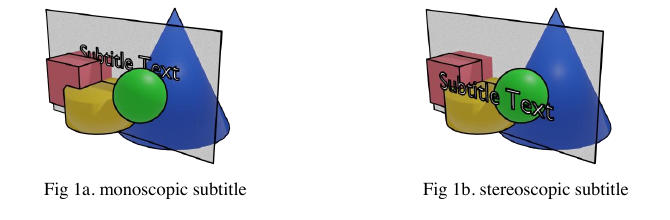
Subtitles in a conventional video are placed directly on the image plane. In a stereoscopic film, however, the scene extends both in front of and behind the cinema screen. A subtitle fixed to the screen plane can therefore collide with a foreground object: the image tells the viewer that the object is closer, while the overlap suggests that the subtitle is closer. The eyes receive contradictory depth cues, which makes the text uncomfortable to read.
Good stereoscopic subtitles are positioned in depth as part of the scene. They remain in front of overlapping picture content, stay comfortable to view, and can change position when the depth composition of a shot changes. Research on stereoscopic subtitle placement identifies depth-cue collision, disparity, visual comfort, and temporal stability as central concerns (Yue et al. 2018).
Why the plugin was developed
DaVinci Resolve Studio already provides strong tools for authoring subtitle text and for adjusting stereoscopic video, but these two systems are not connected. Resolve subtitles are two-dimensional, while its convergence controls operate on video clips.
The Stereoscopic Subtitles Plugin was developed to bridge that gap. It turns the subtitle timing into editable stereo clips, lets the user position every subtitle with Resolve’s familiar convergence controls, and then combines the original text with those depth values in a digital-cinema subtitle XML file. During mastering, that XML becomes a subtitle asset in the final Digital Cinema Package (DCP). This keeps the picture untouched and the subtitles replaceable for different languages.
The workflow is especially useful for independent productions, festivals, and archives that need properly authored stereoscopic language versions without a specialized subtitle mastering system.
Video introduction
The tutorial below demonstrates the complete workflow in Resolve. Watching it once before following the written steps makes the relationship between the subtitle track, the rendered subtitle movie, the EDL, and the exported XML much easier to understand.
TipHow this article is organized
Part 1 — Use the plugin is the practical production guide.
Part 2 — Understand the plugin explains the EDL, Resolve API, depth conversion, XML, source code, and scientific background.
Part 1 — Use the plugin
Before you start
You need:
- DaVinci Resolve Studio with a stereoscopic project;
- a left- and right-eye video timeline;
- the Stereoscopic Subtitles Plugin;
- a way to monitor stereo, such as Resolve’s anaglyph view, a 3D display, or a projector.
Install the plugin
Download or clone the plugin repository.
Copy its plugin folder to:
/Library/Application Support/Blackmagic Design/DaVinci Resolve/Workflow Integration PluginsCreate the
Workflow Integration Pluginsfolder if it does not exist.Restart Resolve.
Open the plugin from Workspace → Workflow Integrations.
The repository’s Demo folder contains a Resolve Project Archive that you can use to test the process.
The complete workflow
1. Create the subtitles
Create a normal subtitle track in Resolve. You can:
- type and time the subtitles manually;
- import an SRT file;
- use Resolve Studio’s audio transcription to create them.
Edit the text and timing before continuing. Keep this original subtitle track throughout the workflow—it supplies the text for the final XML.
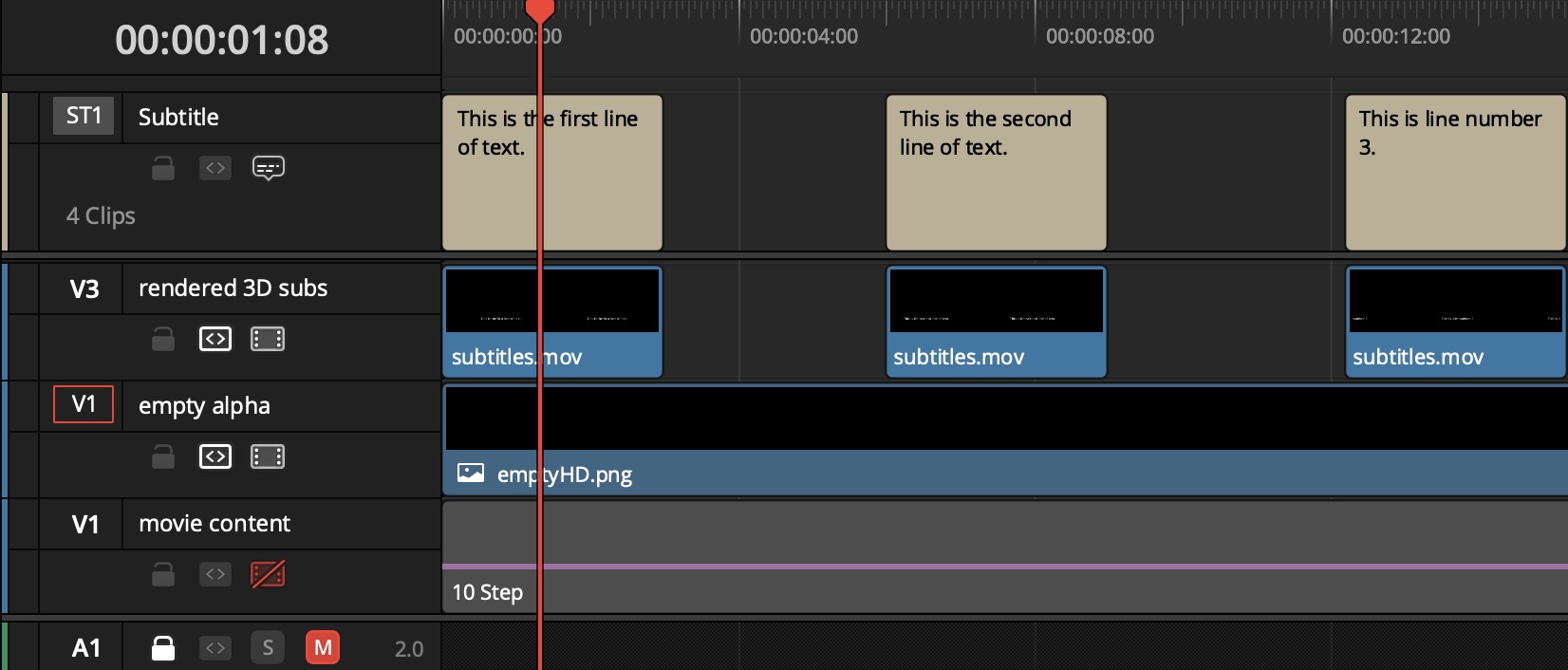
2. Render a transparent subtitle movie
The plugin needs the visible subtitles as a video clip so that Resolve’s stereo controls can be applied to them.
- Disable the original picture and audio tracks.
- Put an empty transparent PNG on a video track below the subtitles.
- Extend the PNG across the entire timeline.
- On the Color page, add an Alpha Output and connect the node’s alpha channel to it.
- On the Deliver page, render video only.
- Select a QuickTime ProRes format that supports alpha.
- Enable Export Alpha and use the timeline resolution.
- Set Export Subtitle → Burn into video.
- In a stereo project, render only the left eye.
You now have one transparent movie containing every subtitle.
3. Reimport and convert it to stereo
Import the rendered subtitle movie into the Media Pool. Right-click it and select Convert to Stereo.
Resolve now treats the identical left- and right-eye images as a stereo clip. This does not create depth by itself—it makes the convergence control available.
4. Split the movie into individual subtitles
The rendered movie is one long clip, but each subtitle needs an independent depth setting.
- Open Workspace → Workflow Integrations → Stereoscopic Subtitles.
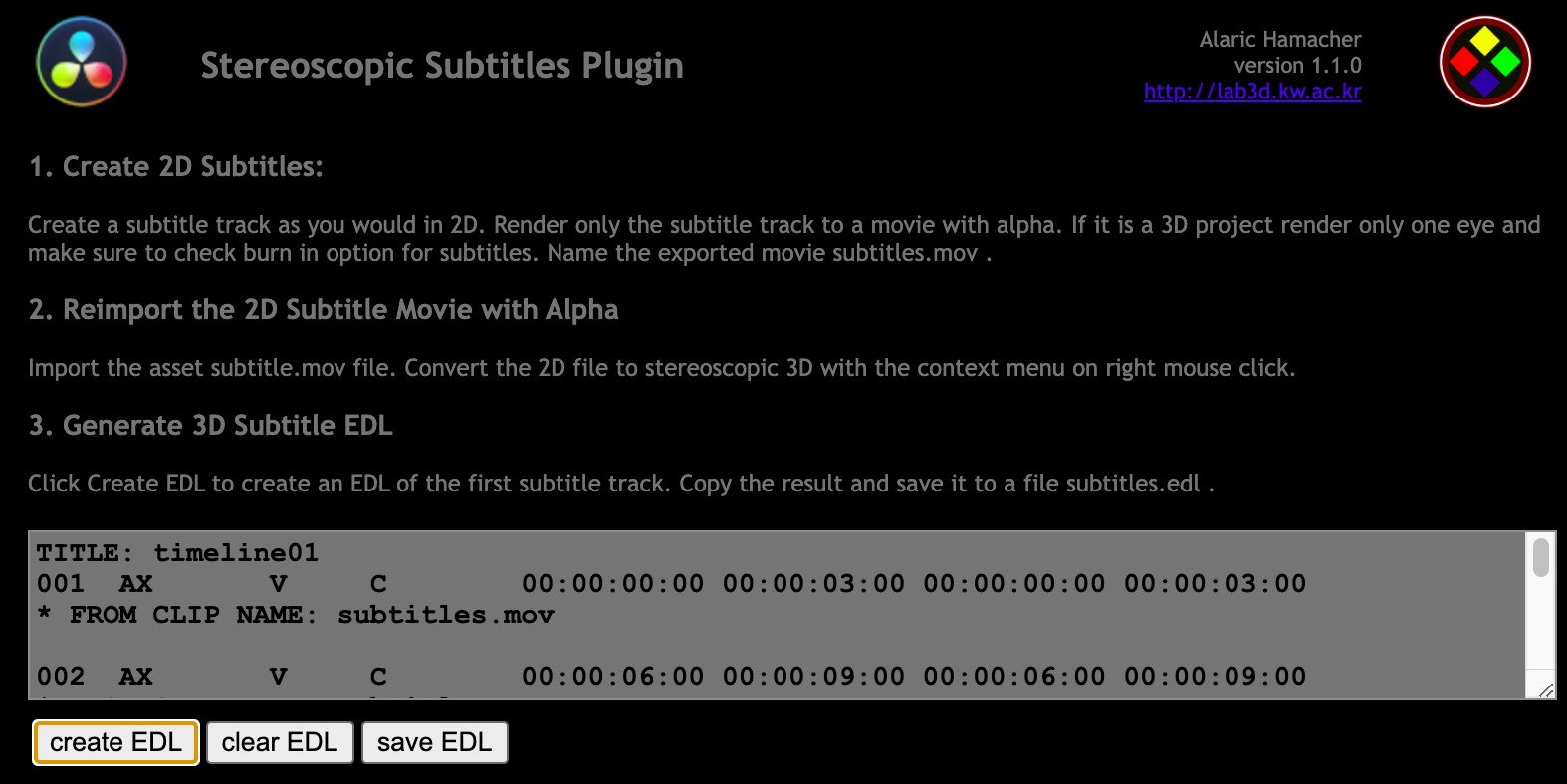
- Use the EDL Generator.
- Save the generated CMX EDL.
- Import the EDL into Resolve.
- When Resolve asks for the media, locate the transparent subtitle movie.
- Copy the segmented clips from the generated timeline.
- Paste them at the matching timecode on a video track above the picture.
NoteCheck the starting timecode
The generated timeline can start at the first subtitle rather than at zero. Paste the clips using their original timecode so that they remain synchronized.
Disable the visible output of the original subtitle track, but do not delete it. The plugin still needs its text and timing.
5. Position the subtitles in depth
On the Color page:
- Enable anaglyph or another stereo monitoring mode.
- Select the first subtitle clip.
- Open the stereo 3D controls.
- Adjust Convergence until the subtitle sits comfortably in front of nearby scene content.
- Repeat for every subtitle clip.
The main rule is simple: avoid depth conflicts. A foreground object should not appear closer to the audience than text that visually overlaps it.
| Setting | Perceived subtitle position |
|---|---|
Negative ZPosition |
In front of the screen |
ZPosition of zero |
On the screen plane |
Positive ZPosition |
Behind the screen |
Keeping subtitles slightly in front is generally safer. Similar shots may share a value, but inspect every subtitle in context.
6. Generate the XML
Before exporting:
- keep the original subtitle track in the timeline;
- place the segmented stereo subtitle clips on the topmost video track;
- confirm that their timing matches.
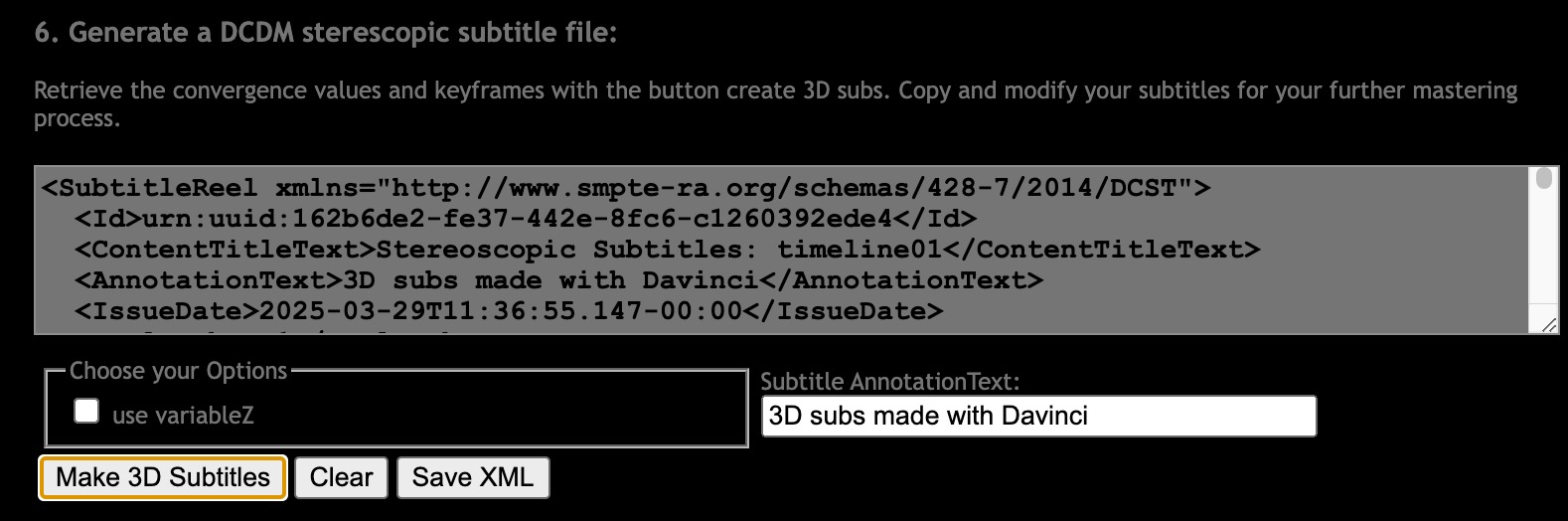
Open the plugin’s XML generator, choose an output location, optionally add annotation text, and select Make 3D Subtitles.
The generated XML contains the original subtitle text and timing together with the depth selected for each clip. It is then combined with the picture, sound, CPL, and other assets when the DCP is assembled.
7. Validate the result
Before exhibition:
- inspect every subtitle in stereoscopic playback;
- check for depth conflicts with foreground objects;
- validate the XML in the intended DCP mastering software;
- test the completed DCP on representative cinema playback equipment.
Use VariableZ only if the complete mastering and playback chain has been tested. VariableZ can animate subtitle depth, but support is not consistent across all software and players. DCP packaging and operational constraints are defined separately from subtitle authoring by SMPTE ST 429-2 and the widely used Bv2.1 application profile (Society of Motion Picture and Television Engineers 2019; Watts et al. 2020).
Part 2 — Understand the plugin
This part explains what the plugin automates and how Resolve’s timeline data becomes a standards-based stereoscopic subtitle document.
What the EDL Generator does
Resolve’s subtitle track already contains the in-point and out-point of every subtitle. The EDL Generator reads those events and creates a CMX edit decision list.
When the EDL is imported, Resolve applies those edits to the transparent subtitle movie. The result is one stereo video clip per subtitle. Because every event is now a separate clip, each one can carry its own convergence value.
flowchart TD
    A["Resolve subtitle track<br/><small>text + in/out timecodes</small>"]
    B["EDL Generator<br/><small>reads every subtitle event</small>"]
    C["CMX EDL file<br/><small>one edit per event</small>"]
    D["Transparent subtitle movie<br/><small>one continuous stereo clip</small>"]
    E["Resolve imports the EDL<br/><small>and applies the timed edits</small>"]
    F["Individual stereo subtitle clips<br/><small>one clip per subtitle</small>"]
    G["Independent convergence<br/><small>one depth value per subtitle</small>"]

    A --> B --> C
    C --> E
    D --> E
    E --> F --> G

    classDef source fill:#e8f1ff,stroke:#2f74c0,color:#16385e,stroke-width:2px;
    classDef generator fill:#f1eaff,stroke:#7651b5,color:#392364,stroke-width:2px;
    classDef media fill:#f7f9fc,stroke:#748296,color:#273444,stroke-width:1.5px;
    classDef result fill:#fff2d9,stroke:#d58a16,color:#5f3a00,stroke-width:2px;

    class A,D source;
    class B,C generator;
    class E media;
    class F,G result;
What the XML Generator reads
The XML Generator combines information from two timeline sources:
| Timeline source | Information used |
|---|---|
| Original subtitle track | Text, in-point, out-point, and formatting |
| Segmented stereo video clips | Convergence and optional keyframes |
Resolve stores projects in a proprietary format, but its scripting API exposes timeline clips and their stereoscopic settings. The plugin uses that API instead of trying to read the project file directly.
Converting Resolve convergence to cinema depth
Resolve stores convergence as a pixel displacement. SMPTE digital-cinema subtitles express ZPosition as a percentage of the main picture width (Hamacher 2024).
The conversion is:
\[ ZPosition = 100 \times \frac{\text{convergence in pixels}}{\text{image width in pixels}} \]
This calculation connects the visual adjustment made in Resolve to a value that a cinema subtitle renderer can interpret.
The generated subtitle XML
Digital-cinema subtitle documents use XML syntax (Bray et al. 2008) and the structures defined by SMPTE ST 428-7 (Society of Motion Picture and Television Engineers 2014). They contain document metadata, synchronization settings, font resources, and a SubtitleList. Each Subtitle defines its display interval. Its Text or Image child contains the visible content and the optional stereo depth.
This shortened example shows the important relationship:
<SubtitleList>
  <Font ID="MainFont" Color="FFFFFFFF" Size="40">
    <Subtitle SpotNumber="1"
              TimeIn="00:00:00:00"
              TimeOut="00:00:03:00">
      <Text ZPosition="-0.52">
        A subtitle positioned in front of the screen
      </Text>
    </Subtitle>
  </Font>
</SubtitleList>
The plugin generates the complete document, including the required namespace and DCDM metadata. The example is deliberately abbreviated.
Static depth and VariableZ
A normal ZPosition gives one subtitle a fixed depth for its complete duration.
VariableZ stores a series of timed depth values. The plugin can derive these values from keyframed convergence in Resolve, allowing a subtitle to move in depth.
Static depth is preferable for routine production because:
- it is easier to author and review;
- it avoids distracting depth movement;
- it has broader playback compatibility.
VariableZ should be treated as an advanced option and validated on the intended projection system.
Standards and research background
The workflow is based on the stereoscopic subtitle structures in SMPTE ST 428-7 (Society of Motion Picture and Television Engineers 2014) and is documented in “Digital Cinema Stereoscopic Subtitle Workflow” (Hamacher 2024).
The paper explains:
- why screen-plane subtitles cause depth conflicts;
- how stereoscopic cinema subtitles represent depth;
- why Resolve is useful as an authoring environment;
- how the EDL and API connect the practical and technical stages;
- how convergence values become
ZPositionandVariableZ.
NoteScientific article
Alaric Hamacher, “Digital Cinema Stereoscopic Subtitle Workflow,” International Journal of Latest Engineering and Management Research, vol.� 9, no. 2, February 2024, pp.� 51–59.
Source code and project files
- Stereoscopic Subtitles Plugin — plugin source code, installation instructions, and demo project
- DCDM 3D Subtitle XSLT — related subtitle transformation work
- Video tutorial — complete Resolve demonstration
- Scientific article PDF — method, standards background, and implementation
- SMPTE ST 428-7:2014 — normative DCDM subtitle structure
- SMPTE RDD 52:2020 — Bv2.1 DCP application profile
References
Bray, Tim, Jean Paoli, C. M. Sperberg-McQueen, Eve Maler, and François Yergeau. 2008. Extensible Markup Language (XML) 1.0. W3C Recommendation, Fifth Edition. World Wide Web Consortium. https://www.w3.org/TR/2008/REC-xml-20081126/.
Hamacher, Alaric. 2024. “Digital Cinema Stereoscopic Subtitle Workflow.” International Journal of Latest Engineering and Management Research 9 (2): 51–59. https://doi.org/10.56581/IJLEMR.9.02.51-59.
Society of Motion Picture and Television Engineers. 2014. D-Cinema Distribution Master—Subtitle. SMPTE Standard ST 428-7:2014. SMPTE. https://pub.smpte.org/latest/st428-7/st0428-7-2014.pdf.
Society of Motion Picture and Television Engineers. 2019. D-Cinema Packaging—DCP Operational Constraints. SMPTE Standard ST 429-2:2019. SMPTE. https://pub.smpte.org/doc/st429-2/20191111-pub/st429-2-2019.pdf.
Watts, Julian, Matty Scoll, Steve LLamb, and Andy Lampard. 2020. D-Cinema Packaging—SMPTE DCP Bv2.1 Application Profile. Registered Disclosure Document RDD 52:2020. SMPTE. https://pub.smpte.org/latest/rdd52/rdd52-2020.pdf.
Yue, Guanghui, Chunping Hou, Jianjun Lei, Yuming Fang, and Weisi Lin. 2018. “Optimal Region Selection for Stereoscopic Video Subtitle Insertion.” IEEE Transactions on Circuits and Systems for Video Technology 28 (11): 3141–53. https://doi.org/10.1109/TCSVT.2017.2739756.