flowchart TD
A["MVC camera file<br/><small>MTS, M2TS, MP4, or MOV</small>"]
B["Convert with mvc2stereo"]
C{"Output required?"}
D["Dual ProRes<br/><small>separate L and R masters</small>"]
E["SBS ProRes<br/><small>one side-by-side movie</small>"]
F["MV-HEVC<br/><small>compatible spatial playback</small>"]
G["Import into Resolve"]
H["Check field order<br/>and deinterlacing"]
I["Declare stereo format<br/>or pair the eye clips"]
J["Edit, align, grade,<br/>monitor, and export"]
A --> B --> C
C --> D
C --> E
C --> F
D --> G
E --> G
F --> G
G --> H --> I --> J
classDef source fill:#e8f1ff,stroke:#2f74c0,color:#16385e,stroke-width:2px;
classDef choice fill:#f1eaff,stroke:#7651b5,color:#392364,stroke-width:2px;
classDef output fill:#fff2d9,stroke:#d58a16,color:#5f3a00,stroke-width:2px;
classDef finish fill:#e7f7ef,stroke:#2f8f62,color:#174b35,stroke-width:2px;
class A,B source;
class C choice;
class D,E,F output;
class G,H,I,J finish;
Converting MVC Video to Modern Stereo 3D
Recover both eyes from AVCHD 3D and JVC MVC recordings with mvc2stereo
Stereo3D
A practical guide to converting MVC camera files into side-by-side ProRes, separate left/right masters, or MV-HEVC.
Keywords
MVC, AVCHD 3D, stereoscopic video, ProRes, MV-HEVC, DaVinci Resolve
Why MVC footage is difficult to use today
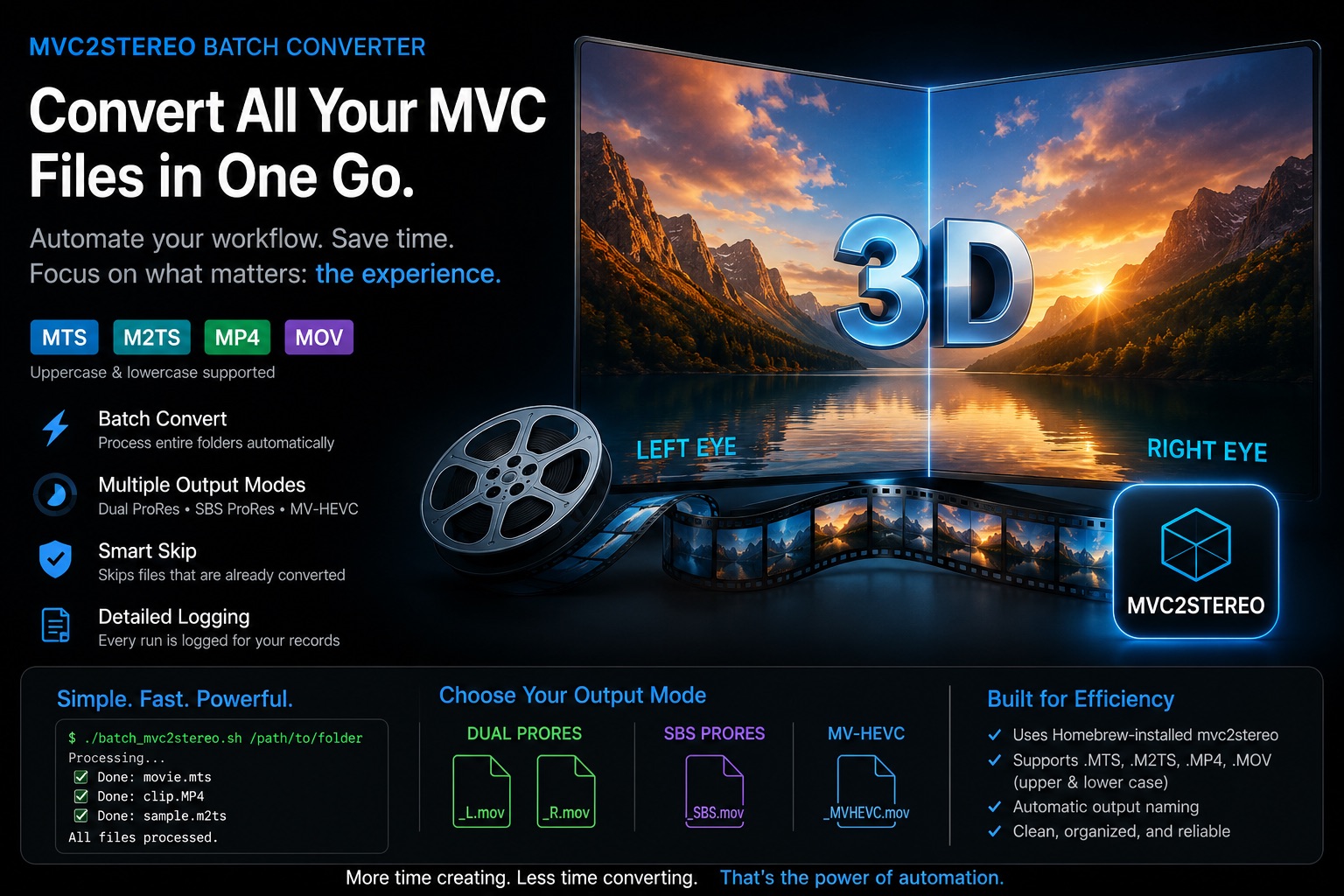
Many stereoscopic cameras recorded 3D video using MVC (Multiview Video Coding). MVC stores one complete video view together with a dependent second view. This was efficient for AVCHD 3D cameras and Blu-ray 3D, but it has become awkward in modern post-production.
An editing application may open an MVC file successfully while showing only the base view. The recording appears to be normal 2D video even though the second eye is still present inside the file. This makes valuable footage difficult to edit, restore, archive, or repurpose for current stereo displays.
mvc2stereo was developed to recover both views and convert them into practical modern formats. It supports Sony and other AVCHD 3D .MTS and .M2TS recordings, elementary MVC streams, and experimental JVC MVC .MP4 and .MOV files.
TipChoose the result you need
For serious post-production, create separate left- and right-eye ProRes files.
For convenient editing and review, create side-by-side ProRes.
For compatible spatial-video playback, experiment with MV-HEVC.
Part 1 — Convert your footage
Install mvc2stereo
The current binary release is intended for macOS on Apple Silicon. Install it with Homebrew:
brew tap stereo3d/tools
brew install stereo3d/tools/mvc2stereo
Confirm that the command is available:
mvc2stereo --helpHomebrew installs the required FFmpeg tools automatically. Python is not required for normal .MTS and .M2TS conversion.
Select an output mode
The best format depends on what you want to do next.
| Output | Files created | Best for |
|---|---|---|
| Dual ProRes | name_L.mov and name_R.mov |
Finishing, alignment, compositing, color grading, and archival masters |
| Side-by-side ProRes | name_SBS.mov |
Editing, review, monitoring, projection, and further conversion |
| MV-HEVC | name_MVHEVC.mov |
Apple spatial-video experiments and compatible headset playback |
NoteA safe production choice
Use Dual ProRes when image quality and independent control of both eyes matter. Use Side-by-side ProRes when simplicity and broad application support are more important.
MV-HEVC support depends on the receiving application and device. Test a short section before converting a long recording.
Convert one file
Side-by-side ProRes
mvc2stereo input.MTS --mode sbs-proresThis creates input_SBS.mov.
Separate left- and right-eye ProRes
mvc2stereo input.MTS --mode dual-proresThis creates input_L.mov and input_R.mov.
MV-HEVC
mvc2stereo input.MTS --mode mv-hevcThis creates input_MVHEVC.mov.
Test before a long conversion
Decode only the first 100 stereo frames:
mvc2stereo input.MTS --mode sbs-prores --max-frames 100Open the test file and check:
- both eyes are present;
- left and right are in the expected order;
- motion is synchronized;
- the image is not vertically displaced;
- interlacing and field order are interpreted correctly;
- audio is present when required.
A short test is particularly important for JVC MP4/MOV sources and unfamiliar camera files.
Choose the audio format
Audio is preserved by default. You can request a specific treatment:
# Uncompressed PCM
mvc2stereo input.MTS --mode sbs-prores --audio pcm

# AAC
mvc2stereo input.MTS --mode sbs-prores --audio aac

# No audio
mvc2stereo input.MTS --mode sbs-prores --audio none
PCM is a practical choice for editing and mastering. AAC produces smaller delivery or review files.
Use the result in DaVinci Resolve
Check interlacing
Some MVC camera recordings are interlaced. Resolve may not identify their field order correctly.
- Import the converted movie.
- Right-click the clip in the Media Pool.
- Open Clip Attributes.
- Set the correct interpretation: Upper Field First, Lower Field First, or Progressive.
- Enable Resolve’s deinterlacing when required.
Resolve Studio’s Neural Engine deinterlacer is useful for preparing interlaced camera footage for progressive post-production and delivery.
Identify side-by-side material
For an SBS ProRes file:
- Right-click the clip in the Media Pool.
- Open Clip Attributes.
- Set its stereoscopic 3D format to Side-by-Side.
- Use Resolve’s stereo tools for alignment, convergence, monitoring, and output.
With Dual ProRes, pair the left- and right-eye files according to your normal Resolve stereo workflow.
Convert a complete folder
The repository includes batch_mvc2stereo.sh for large collections and overnight conversions.
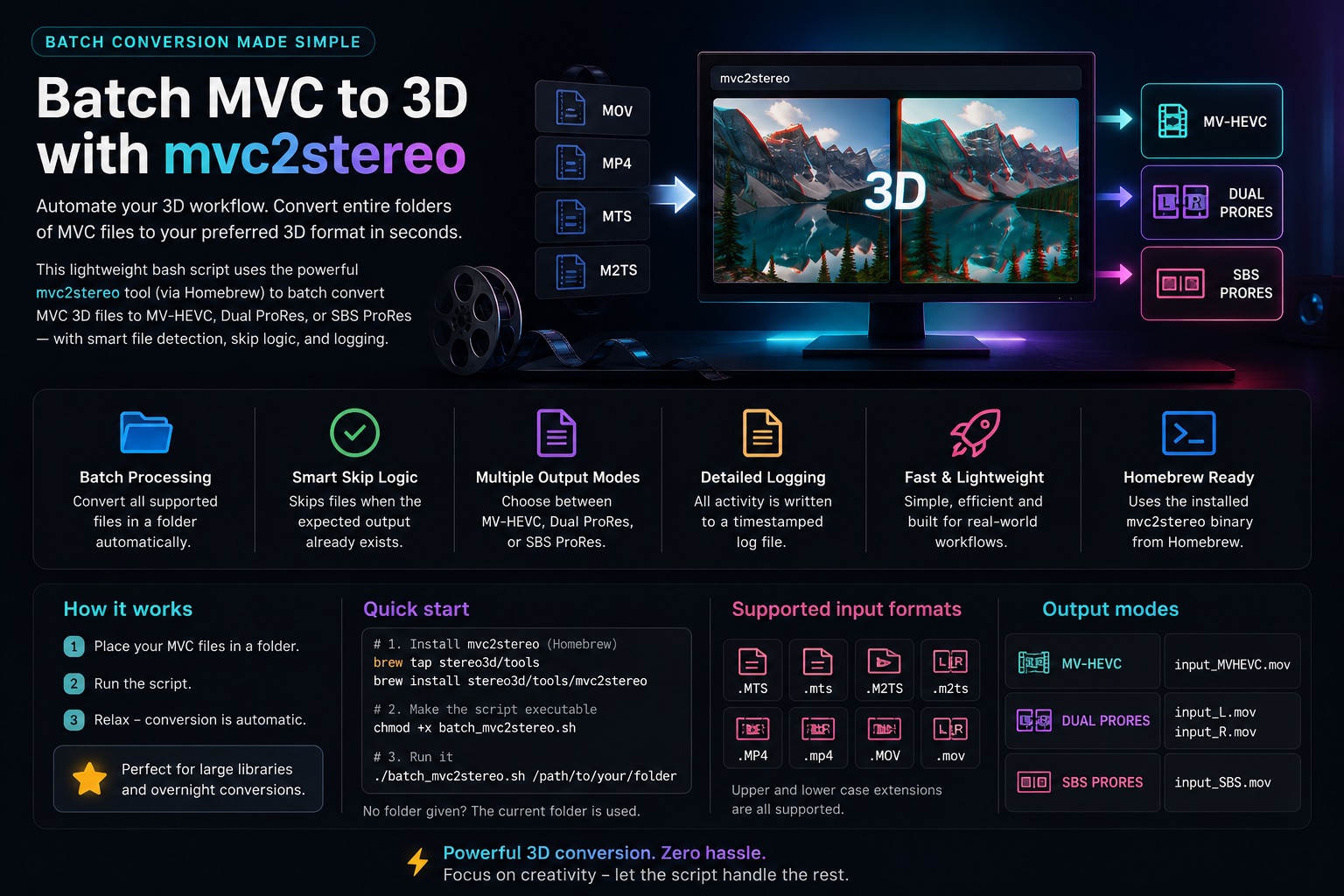
Download the batch script from the mvc2stereo repository, then make it executable:
chmod +x batch_mvc2stereo.shConvert a selected folder:
./batch_mvc2stereo.sh /path/to/folderRun it without a path to use the current folder:
./batch_mvc2stereo.shThe script:
- finds
.MTS,.M2TS,.MP4, and.MOVfiles in upper- or lowercase; - converts each supported file;
- skips a source when the expected output already exists;
- uses predictable output names;
- writes a timestamped
batch_YYYYMMDD_HHMMSS.log.
Its default is MV-HEVC. Edit the MODE setting in the script when you want dual-prores or sbs-prores instead.
Supported sources
| Source | Status | Notes |
|---|---|---|
.MTS, .M2TS |
Primary support | Native transport-stream processing; recommended path |
.264, .h264, .avc |
Supported | Elementary H.264/MVC streams |
JVC MVC .MP4, .MOV |
Experimental | Additional extraction and stream reconstruction are required |
Some JVC cameras store MVC inside MP4 or MOV containers. Preparing these files can take longer, especially for large recordings.
Interlaced JVC sources may be reported by ffprobe as 50 frames per second even when they represent 50 fields per second. When appropriate, mvc2stereo compensates by writing a 25 fps interlaced output. Always confirm the result in Clip Attributes.
If a conversion looks wrong
Work through this checklist:
Convert only 100 frames and inspect the short test.
Confirm that the source really contains MVC rather than a single AVC view.
Check left/right eye order.
Check the field order and frame-rate interpretation.
Try Dual ProRes to inspect both eyes independently.
Keep the temporary files if diagnosis is necessary:
mvc2stereo input.MTS --mode dual-prores --keep-tempFor JVC MP4/MOV failures, remember that support is experimental and damaged or incomplete containers may not extract fully.
For MV-HEVC problems, test the file in another compatible application before assuming that conversion failed.
Part 2 — What happens under the hood
How MVC stores two eyes
MVC extends H.264/AVC rather than storing two completely independent videos:
- the base view is a complete AVC video stream;
- the dependent view stores the additional information needed to reconstruct the second eye.
Software that understands only ordinary AVC usually decodes the base view and silently ignores the dependent view. mvc2stereo rebuilds and decodes the complete stereo stream so that both eyes become accessible.
The conversion pipeline
flowchart TD
    A["MVC source container"]
    B["Read stream information"]
    C["Extract base view<br/>and dependent view"]
    D["Rebuild MVC<br/>access units"]
    E["Decode both eyes<br/>with the JM MVC decoder"]
    F{"Selected output mode"}
    G["Side-by-side<br/>ProRes"]
    H["Left + right<br/>ProRes masters"]
    I["Multilayer<br/>MV-HEVC"]
    J["Preserve or encode audio<br/>and write final movie"]

    A --> B --> C --> D --> E --> F
    F --> G --> J
    F --> H --> J
    F --> I --> J

    classDef container fill:#e8f1ff,stroke:#2f74c0,color:#16385e,stroke-width:2px;
    classDef process fill:#f7f9fc,stroke:#748296,color:#273444,stroke-width:1.5px;
    classDef choice fill:#f1eaff,stroke:#7651b5,color:#392364,stroke-width:2px;
    classDef output fill:#e7f7ef,stroke:#2f8f62,color:#174b35,stroke-width:2px;
    class A container;
    class B,C,D,E process;
    class F choice;
    class G,H,I,J output;
For .MTS and .M2TS sources, transport-stream demultiplexing and MVC access-unit merging are implemented natively in Swift. The tool uses the JM reference MVC decoder to reconstruct both views.
FFmpeg and ffprobe handle media inspection, audio muxing, and parts of the experimental JVC MP4/MOV extraction path.
Why the output files are larger
MVC saves space by predicting the dependent eye from the base eye. ProRes output represents both views as complete images:
- Dual ProRes stores two full-quality movies.
- Side-by-side ProRes stores both images in one larger raster.
The files are therefore much larger than the MVC source. This is expected. The purpose of an intermediate codec is fast, reliable post-production rather than compact camera storage.
Current limitations
- The distributed binary currently targets macOS Apple Silicon.
- JVC MP4/MOV support is experimental.
- Damaged or incomplete MP4/MOV files may not extract fully.
- Field-order interpretation still needs to be checked in the editing application.
- MV-HEVC compatibility varies between applications and playback devices.
- Users integrating the tool into products should review the third-party and patent notices.
Preservation and production value
mvc2stereo was created for real production, restoration, education, and archival needs. Recovering both views allows MVC camera material to be:
- edited and color graded in current software;
- corrected for stereo alignment and convergence;
- preserved as independent eye masters;
- converted into current immersive delivery formats;
- reviewed and projected in workshops and festivals.
The tool has supported stereoscopic education and production workflows connected to the Busan International Short Film Festival’s New Media Workshop and 3D Masterclass.
Project resources
- mvc2stereo on GitHub — documentation, batch script, notices, and project updates
- Homebrew installation — distribution tap for the command-line tool
- Third-party notices — JM reference decoder attribution and licensing information
- 3D Film Lab — stereoscopic research, education, and production activities
ImportantPreserve the source
Keep the original MVC camera files after conversion. ProRes and MV-HEVC derivatives make the recordings usable, but the original MVC media remains the closest copy of the camera data and may benefit from improved decoding tools in the future.